EditLume is a browser-based AI image generator and editor. Instead of building an edit with selections, masks, layers, and adjustment panels, you upload an image and describe the result you want in plain English.
That simple idea covers a surprisingly broad range of work. EditLume can remove an unwanted object, replace a background, change the lighting, restore an old photo, restyle a portrait, or use an existing image as the starting point for a larger creative transformation. It is particularly useful when you know what the finished image should look like but do not want to construct every change manually.
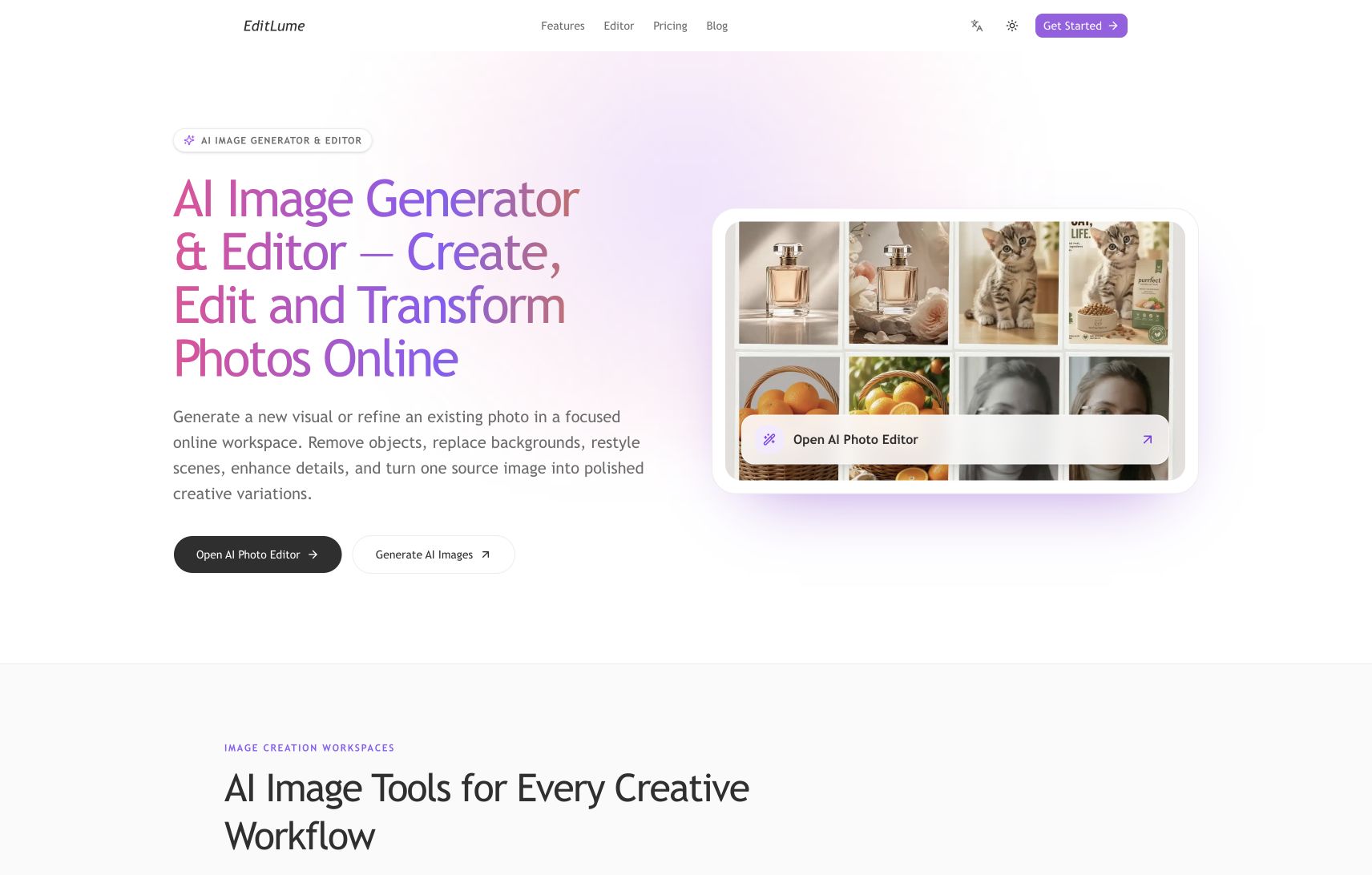
EditLume brings image generation and prompt-based photo editing into one online workspace.
What Is EditLume?
EditLume is best understood as a collection of focused AI creation workspaces. The two most useful starting points are:
- AI Photo Editor: Best for making a specific change to an existing photo, such as removing an object, replacing a background, correcting lighting, or restoring detail.
- Image to Image: Best for using one or more reference images to explore a new composition, setting, style, or visual direction.
The distinction matters. If you already like the original composition and only want to correct one part of it, start with the editor. If you want the source image to inspire a noticeably different result, image-to-image generation gives the model more creative room.
EditLume also places several hosted image models in the same interface. The available models and their exact capabilities may change, but the workspace shows compatible options such as reference-image support, aspect ratio, output quality, and credit cost before generation.
How to Use EditLume
1. Choose the Right Workspace
Open the AI Photo Editor for a targeted correction. Use Image to Image when the goal is a broader transformation.
This first choice saves time later. A request such as “remove the cable behind the chair” is a precise edit. A request such as “turn this daylight product photo into a cinematic winter campaign” is a creative transformation.
2. Select a Mode and Model
The editor currently offers Single Edit and Multi Fusion modes. Single Edit is the natural choice for one source photo. Multi Fusion is useful when a supported model can combine several references—for example, a product from one image, a setting from another, and a visual style from a third.
Next, choose a model. Do not assume that the most expensive option is automatically the best. A fast, lower-cost model is often enough for prompt experiments, while a higher-quality model makes more sense after the direction is clear.
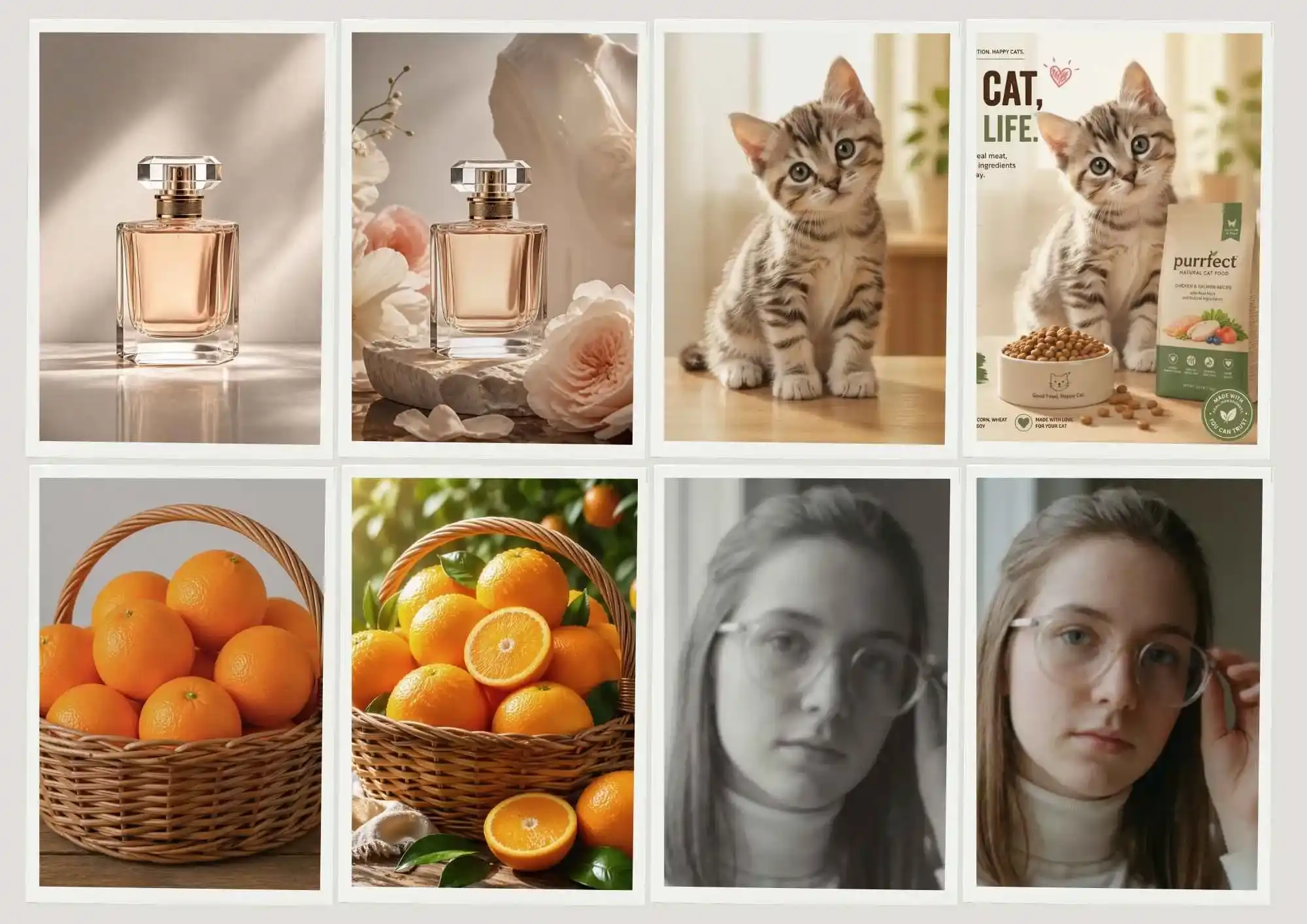
The editor keeps the source image, prompt, model, aspect ratio, quality, and generation controls in one place.
3. Upload a Clean Source Image
The editor accepts JPG, PNG, and WebP files up to 24 MB. Start with the clearest source you have. Good lighting, a visible subject, and sufficient resolution give the model more reliable information to preserve.
If you are editing a product, avoid a source in which the product is partly hidden. For portraits, make sure important facial details are visible. For object removal, include enough of the surrounding scene for the model to reconstruct the missing area.
Multi-reference workflows can accept up to five images on supported models. Each reference should have a clear purpose; adding more images without explaining their roles can make the result less predictable.
4. Write a Specific Prompt
A useful editing prompt contains four parts:
- The subject: What is the main object or person?
- The change: What should be added, removed, replaced, or restyled?
- The constraints: What must remain unchanged?
- The finish: What lighting, composition, texture, or mood should the result have?
For example:
Replace the white background with a warm kitchen interior. Keep the perfume bottle, label, proportions, and reflections unchanged. Add soft morning light and a natural shadow beneath the bottle. Use a clean commercial photography style.
This is more dependable than simply writing “make it better.” It tells the model what success means and, just as importantly, what it should not redesign.
Here are a few prompts that are easy to adapt:
- Object removal: “Remove the person in the far-left background and rebuild the wall naturally. Keep the main subject and framing unchanged.”
- Portrait cleanup: “Improve the exposure and reduce the harsh shadows. Preserve facial features, skin texture, hair, clothing, and the original background.”
- Product scene: “Place this product on a dark stone surface in a premium studio setting. Keep the packaging text legible and the product shape unchanged.”
- Style transfer: “Transform this photo into a soft editorial illustration with muted colors. Preserve the pose, facial identity, and composition.”
- Restoration: “Restore this old photograph, remove scratches and dust, improve contrast, and recover natural detail without changing the people.”
5. Set the Aspect Ratio and Quality
Choose the aspect ratio for the final destination, not just for the source image. A square image works well for product cards and many social posts; portrait ratios suit mobile feeds and stories; landscape ratios are better for banners, presentations, and video thumbnails.
Quality settings and available resolutions depend on the selected model. EditLume can offer output up to 4K on supported models. Higher quality also uses more credits, so it is practical to test the prompt at a lower setting before creating the final version.
6. Generate, Review, and Refine
Before generating, EditLume displays the credit cost on the button. After the task finishes, inspect the image at full size. Look closely at:
- Faces, hands, logos, labels, and small text
- Fine edges around hair, glass, fur, and reflective objects
- Shadows and reflections that connect the subject to the new background
- Details that the prompt asked the model to preserve
If the result is close, change only one or two instructions. A focused correction such as “keep the original label exactly unchanged” is easier to evaluate than rewriting the entire prompt after every attempt.
Completed images can be downloaded from the editor or found later in My Creations.
What EditLume Can Do Well
Background Replacement and Product Scenes
Background work is one of the clearest uses for a prompt-based editor. A seller can turn a basic cutout into several lifestyle images without arranging a new photo shoot for every concept. The most convincing results preserve the original product geometry, reflections, label, and contact shadow.
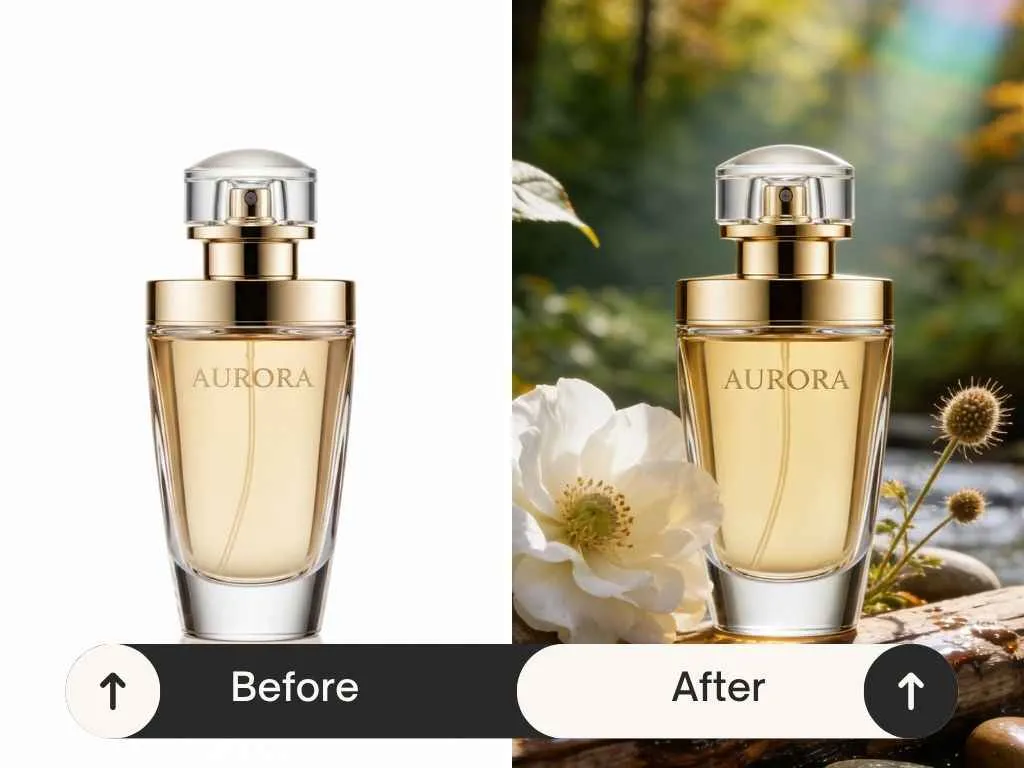
An official EditLume example shows how one product photo can become a more polished lifestyle scene.
Portrait Enhancement and Restyling
Portrait edits can range from subtle exposure correction to a complete change of setting or visual style. The key is to state whether identity, pose, clothing, and expression must remain unchanged. Without those constraints, a model may produce an attractive image that no longer feels like the same photograph.
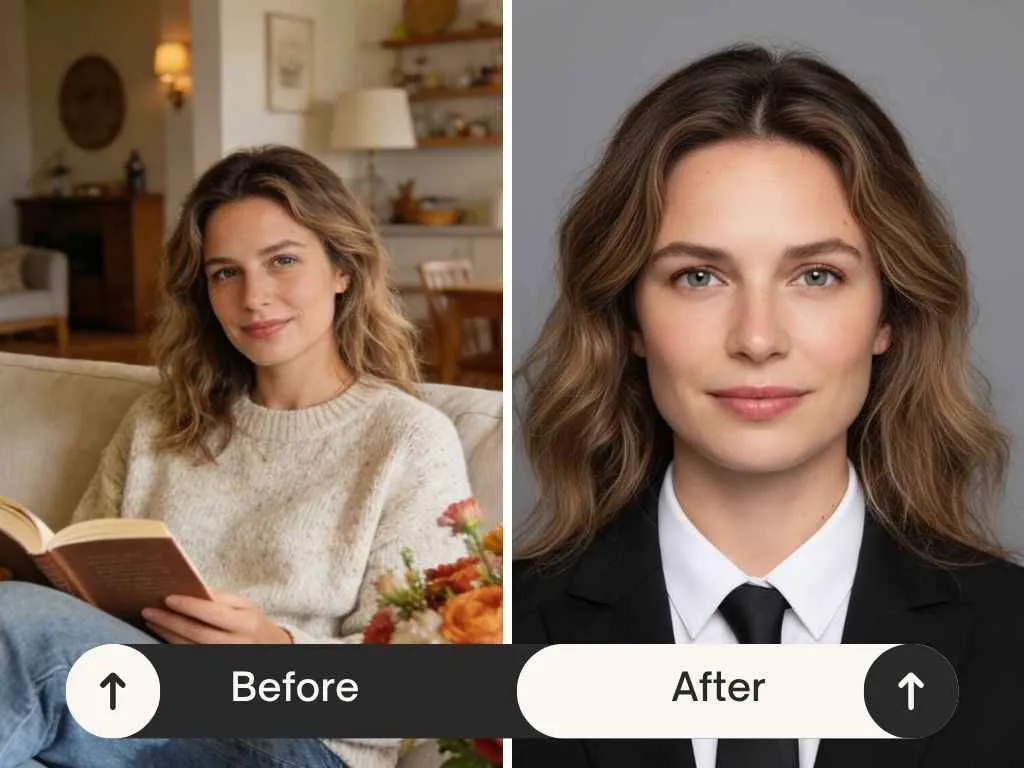
Portrait prompts work best when they define both the desired finish and the details that must be preserved.
Cleanup and Object Removal
EditLume can remove passersby, cables, signs, clutter, or small imperfections and reconstruct the missing area from nearby visual information. Results tend to be strongest when the unwanted object is named precisely and the surrounding area has a clear, repeatable texture.
Creative Variations
Image-to-image generation is useful for exploring campaign directions, illustrations, thumbnails, mood boards, and alternate compositions. One approved source can lead to several settings or styles while keeping the central subject recognizable. This makes EditLume useful during the idea stage, when variety and speed matter more than perfect pixel-level control.
The Main Benefits of EditLume
A Much Shorter Learning Curve
You do not need to understand masks, blending modes, adjustment layers, or complex selection tools before making a useful edit. The main skill is learning to describe the visual outcome clearly.
Multiple Models in One Workspace
Different image models have different strengths. EditLume lets you compare compatible models and settings without moving the project between several unrelated services. That makes it easier to test whether a task benefits from speed, stronger reference preservation, or higher-resolution output.
Fast Iteration
Traditional editing is powerful, but exploring five completely different campaign directions can still take time. A prompt-based workflow makes early experimentation much faster. Once a direction works, you can refine it in EditLume or finish precise details in a conventional editor.
Useful for Both Practical and Creative Work
The same tool can clean up an e-commerce photo, restore a family picture, create a social thumbnail, or transform a sketch into a polished visual. That flexibility is valuable for small teams and individual creators who do not want a separate application for every image task.
Visible Credit Costs
The interface shows how many credits a generation will use before you start it. EditLume offers signup or daily credits when available, alongside subscriptions and non-expiring credit packs. Plans and model costs can change, so check the current pricing page before planning a large batch.
A Few Practical Limits
EditLume is not a complete replacement for a traditional pixel editor. A prompt can produce a strong overall result, but it is less suitable when you need exact selections, measured typography, print-ready color control, or repeatable changes at the individual-pixel level.
AI results also need inspection. Small text, logos, hands, reflections, and identity details can drift between generations. Keep the original file, use explicit preservation instructions, and review important commercial images carefully.
An account is required to generate and save results. Before uploading confidential, personal, or client-owned material, read the current privacy policy and make sure the workflow fits your requirements.
Final Thoughts
EditLume is most compelling when the desired change is easy to describe but tedious to build manually. Its focused browser interface, choice of models, visible credit costs, and support for both precise edits and larger transformations make it approachable without reducing every job to a one-click filter.
The best way to start is with one good source image and one concrete task. Ask for a background replacement, remove a distracting object, or create a single style variation. Preserve important details in the prompt, test at a sensible quality setting, and refine one instruction at a time. That simple workflow is where EditLume delivers the most value.
评论